Make a small image big enough to use
The AI rebuilds detail rather than just stretching pixels, and the result lands as a layer in the editor — so you can cut it, separate it or export it without opening it again. No graphics card, nothing to install — it works on a phone. Best on photographs and texture; for flat-colour logos, see below.
Upscale it in the editor
Open your image once and the upscaler works on what is already there. The result comes back as a layer, so you can lift a subject out of it, separate it into printable inks or export a real layered PSD without starting over.
Open the upscalerLogos and flat artwork: free, unlimited, no account — those are enlarged in
your browser and never leave your device.
Photographs: two a day free, still no account — those are rebuilt by the AI
on our servers. A free account raises it, and adds 14 credits for anything
bigger. No card either way.
What the difference actually looks like
Both halves are the same crop at the same size. The left is what you get by enlarging normally — the pixels are stretched. The right is this tool.
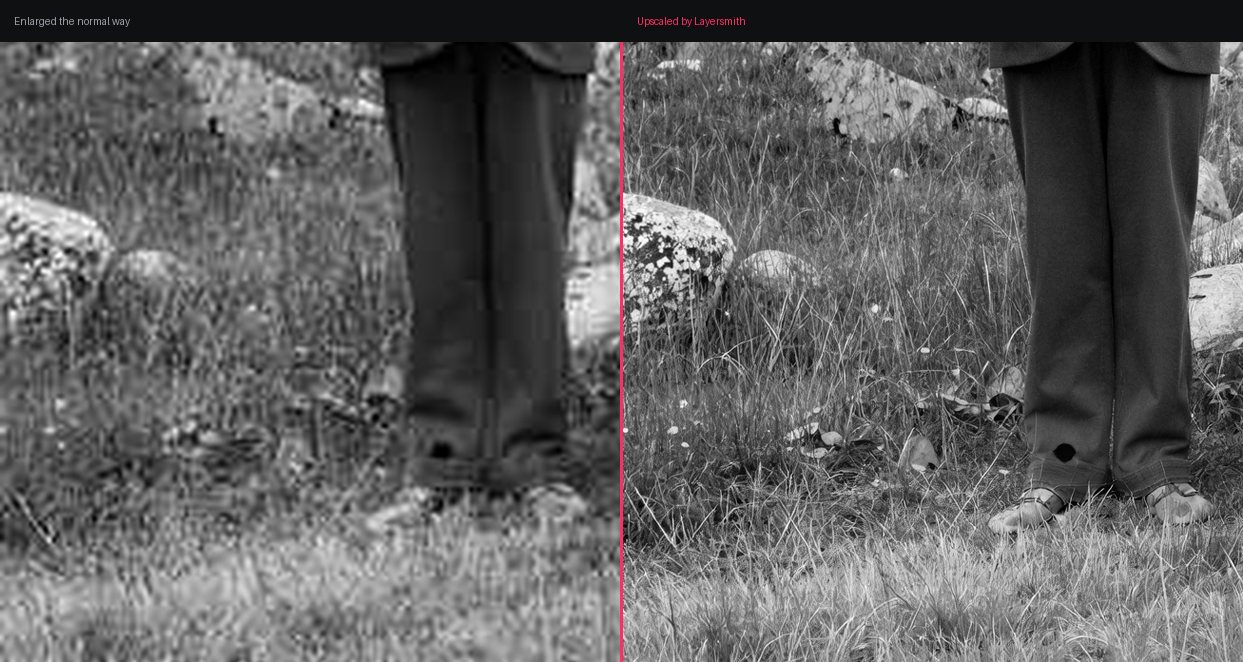
No sharpening is applied afterwards, deliberately. We measured it: the model already doubles edge definition with zero edge overshoot, and adding an unsharp pass on top introduces halos on 15–36% of pixels. Crisper for a moment, worse to look at, much worse to print.
Why this one runs anywhere
The best free upscaler you can install, Upscayl, needs a discrete Vulkan graphics card and says plainly that it will not run on most integrated graphics or CPUs — and there is no CPU fallback. That rules out office laptops, Chromebooks and every phone.
This runs the model on a server and hands you back a file, so the only thing your device does is download it.
What it is good at — and not
Photographs and anything with texture. Grass, fabric, skin, hair, brickwork: it rebuilds detail that a normal enlargement turns to mush.
Not flat-colour art. Logos, vector-style graphics and solid blocks of one colour come back with the colour drifting slightly across the field — we measured a flat red going from almost perfectly even to visibly uneven, even from a clean source. For that kind of art a plain enlargement is genuinely better, and the Colours tab is better still, because separating to ink plates removes the drift entirely.
Printing it?
Print wants about 300 dpi at final size — a 12-inch print needs roughly 3,600 pixels across. The editor reports the finished size and the dpi you would get on a 12-inch print, so you can check before you send it.
If you are separating art for screen printing, the Colours tab does the plates and can upscale under-resolution art as part of that job — where the drift above does not matter, because every pixel ends up assigned to one ink anyway.