image → layers
Split any image into separate, editable layers
* Free to use — the editor runs in your browser, and nothing is uploaded unless you start a server step: the AI tools, or upscaling a photograph (logos and flat artwork are enlarged on your device). A free account (Google, Apple or an emailed code — no card) is needed to download the finished file, and comes with credits for the server-side tools.
Click an object and it becomes a layer. One button separates a whole subject. Wand, lasso and brush cover everything the AI misses — then export the layer stack as a PSD, an OpenRaster file, or a plain folder of transparent PNGs, whichever your pipeline actually reads.
Split an imageThe output is the product
Every AI layer separator on the internet runs broadly similar models, so the model is not the differentiator — what you get back is. Most of them return a "layer sheet" (one big PNG with your objects arranged side by side on a grid) or a bare ZIP of images, and leave the actual layered file for you to assemble by hand in Photoshop. That is the part you wanted automated. Here the separation is written directly into a real layered file: named layers inside real groups, with each lifted selection attached as a non-destructive mask. There is no reassembly step.
Four ways to get layers, one shared stack
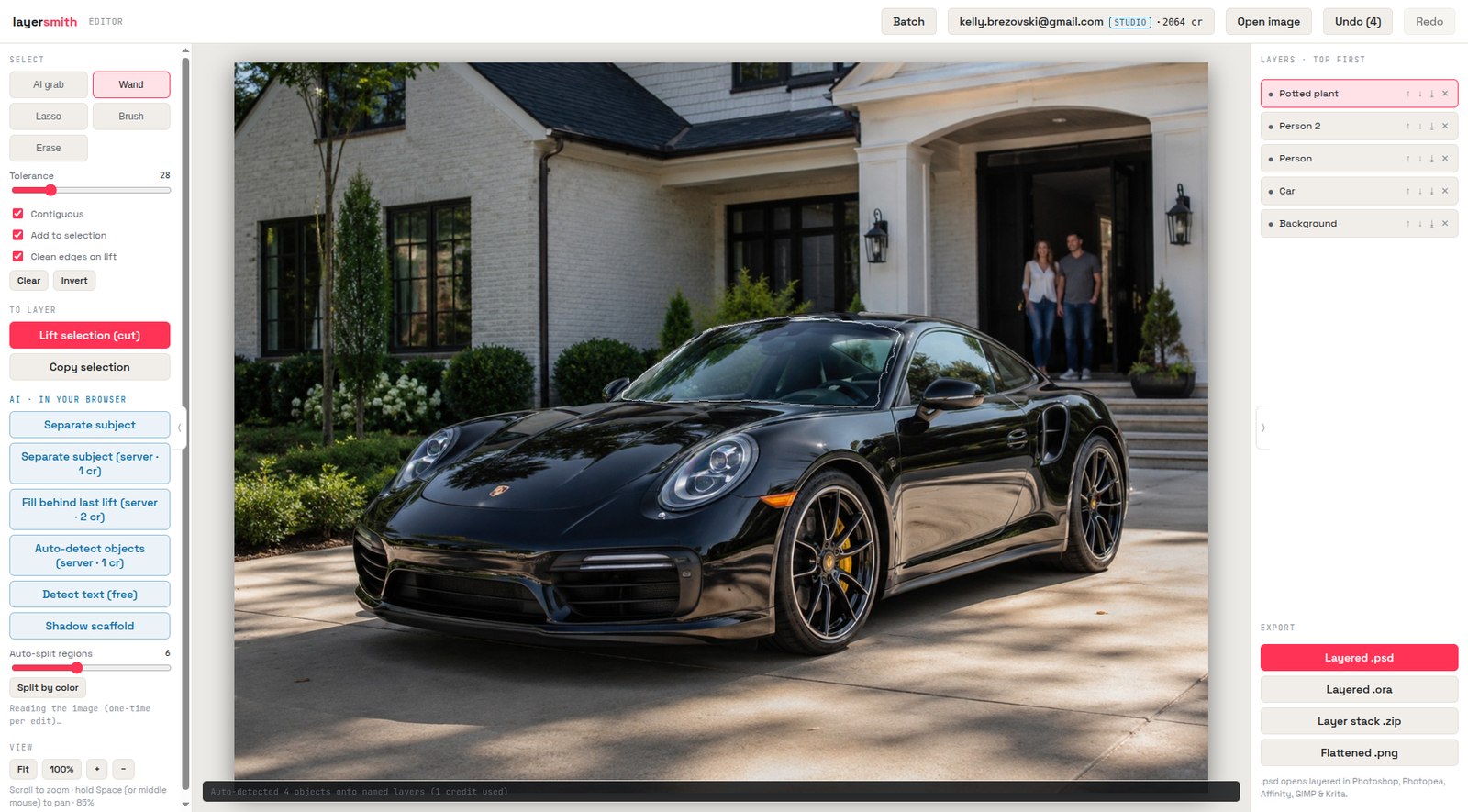
Different images want different tools, so there are four separators and they all feed the same layer panel. Photographs respond to AI grab — click any object and a segmentation model running in your browser finds its outline. Portraits and products get Separate subject, one button that returns the subject and the background as two independent layers. Busy scenes get Auto-detect, which sweeps the image with two detectors, then outlines and names every object it finds (from 1 credit, plus 1 for each object whose outline needs rebuilding by the strongest subject model — capped at 8 per run, and it tells you how many it used). Flat art — logos, posters, screenshots — gets Split by color, which needs no AI at all and runs instantly. Mix them freely on one document: everything lands in the same stack, where you can reorder, rename, merge and refine.
The hard cases are the point
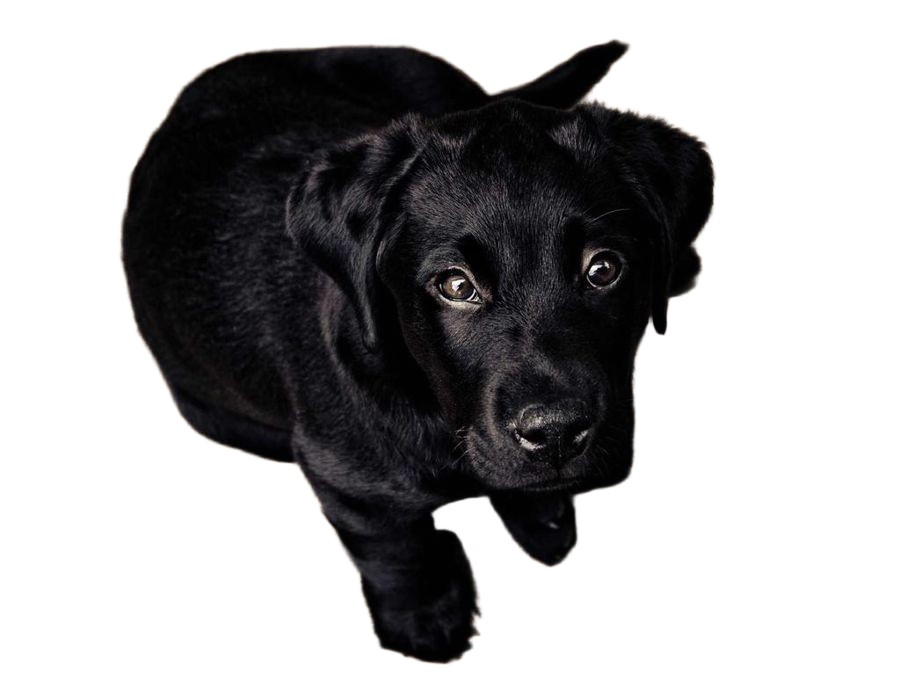
Anyone can separate a red ball on a white table. The test is a black dog on a dark wooden floor — low contrast, fine fur, whiskers against a similar tone. Below is our unretouched result from the server model. Fine hair, fur and fabric fringe are where every segmentation model earns or loses its reputation, and they are the reason there is a stronger server option at all rather than only the free in-browser one.
AI plus hands: what happens after the model runs
No separator is perfect on every image, and the honest question is not whether the AI misses but what you can do when it does. Here the AI result is an editable selection and a live layer stack, not a take-it-or-leave-it download. Add to the selection with a brush, erase where it overreached, invert it, or re-run just one object. Wand, lasso, rectangle and ellipse are all there for the cases where clicking is the wrong instrument. The last five per cent stays yours to control, which is precisely what a one-shot upload-and-download site cannot offer no matter how good its model is.
Layers with nothing missing underneath
Lifting an object normally leaves a hole in the background — fine until you move the object and the hole shows. Fill behind reconstructs the background so every layer is genuinely independently movable, and that single feature is the difference between a background remover with extra steps and a file that behaves the way a designer would have built it. Smooth backgrounds (sky, gradients, a flat wall) are filled free in your browser by a harmonic solver that reproduces a colour ramp exactly. Textured backgrounds go to the server fill, which starts at 2 credits; large or structured holes are routed through an HD pass that costs more, currently 6 credits. Every reconstructed region is prefixed AI_Fill_ in the layer name, so you always know which pixels were generated and which are yours.
Format-agnostic on purpose
Most converters are PSD-only because PSD is the only layered format their audience has heard of. But "a layered file" means different things in different pipelines: a masked PSD for a retoucher, an OpenRaster file for a Krita painter, a numbered folder of transparent PNGs for a video editor, a game engine or a slide deck. The layer stack gets built once here and then written into whichever container you need — same layers, your choice of file. PSD goes to Photoshop, Affinity and Photopea; ORA is native in GIMP, Krita and MyPaint, so it removes the PSD-importer failure mode entirely; the PNG stack goes anywhere at all.
Private by architecture, not by promise
The free tools cannot leak your image because it never leaves your machine: the models, the editor and both file writers execute in your browser. That is worth stating precisely rather than as a boast, because retention policies in this category vary and are usually published. To pick the one competitor we can quote directly: imagetolayers.com's privacy policy states it keeps files "only as long as needed to provide downloads (e.g., 7 days on Free, longer on paid plans)" (checked 29 July 2026). Ours is 24 hours, backed by a storage lifecycle rule rather than a promise, and it only applies at all to the opt-in server features — each labelled with its credit cost before you click. Nothing is ever used to train models.
Frequently asked
What formats can I export?
Layered .psd (Photoshop, Photopea, Affinity), layered .ora (GIMP, Krita, MyPaint), a ZIP of transparent PNGs numbered in stacking order, or a flattened PNG. ORA and the PNG stack are free and unlimited. Never a "layer sheet" you have to dissect.
Is it really free?
The in-browser editor and AI are free without an account, plus unlimited ORA and PNG-stack exports. The layered .psd needs a free account and is one a day; a monthly plan removes that cap and unlocks the stronger server models. There is also a one-off pack whose credits never expire. No watermarks or downscaling on any tier.
How is this different from a background remover?
A background remover gives you one cutout. This gives you a layered file: subject, background (with the hole behind the subject filled), text, and any objects you choose, each on its own layer, ready to edit.
Does it work on anime and illustrations?
Yes. AI grab and Separate subject handle drawn art well, and Split by color is purpose-built for flat-colour illustration — it puts every region of one colour on one layer in a single pass, with no AI involved.
Which layered format should I pick?
PSD if the file is going to Photoshop, Photopea or Affinity. ORA if it is going to GIMP or Krita — those read it natively, so nothing gets lost in a PSD importer. A PNG stack if it is going anywhere else: video editors, game engines, slide decks, or a tool you are not sure about.
What does the AI actually run on?
The free click-to-grab and subject models run entirely in your browser, so your image never uploads. The stronger server models are metered — 1 credit for subject separation, from 1 credit for auto-detect, from 2 for a background fill — and server copies are deleted within 24 hours.
Keep reading
Image to PSD with real layersSplit an image by object, or by colourSeparate a subject and keep the backgroundLayered OpenRaster for GIMP and KritaHow we compare to imagetolayers.comRelated
Split an image into layers — by object, or by colorTurn any image into a layered .ora for GIMP and KritaA layered PSD that keeps your full resolutionRebuild flat artwork into a print-ready layered PSDAn Image to Layers alternative, compared honestlyUpscale artwork for printing without it going softA free image upscaler that does not ask for anything firstHow to get an image to 300 dpi for printing